Add other people to your account so they can sign in with their own email and work on your screens and content. Each user belongs to a team, and the team decides what they can see and change. See Teams.
Only the account owner and members of the Administrators team see User Management.
How to manage users
- Click Account at the bottom of the menu on the left.
- Click User Management. The Users tab opens.
You can also go to Settings > User Management.
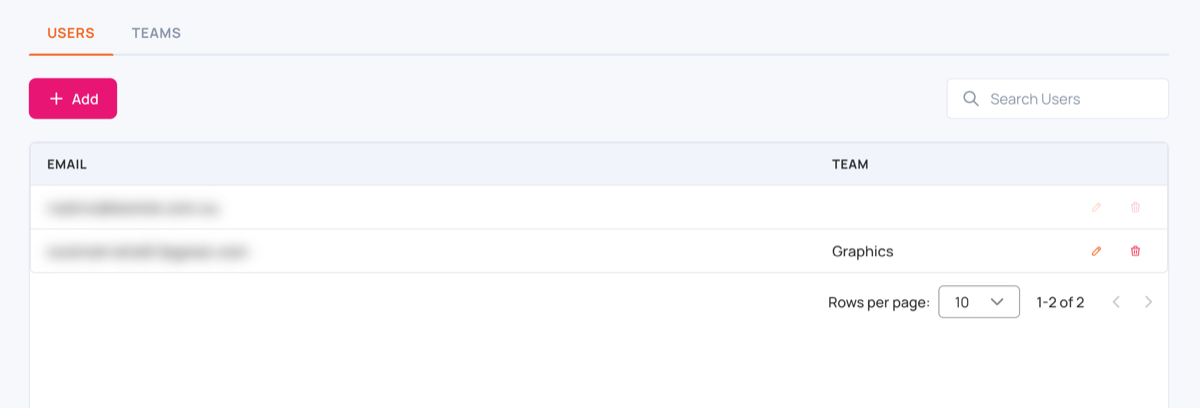
The list shows each user’s Email and Team. The first row is the account owner: it can’t be edited or removed. Use Search Users to find someone.
How to add a user
- Click Add.
- In Enter the email of the user, type the person’s email address.
- Choose their Team. It starts on Administrators, which gives full access to your account, so choose another team if they should have less access.
- Click Add user to my account.
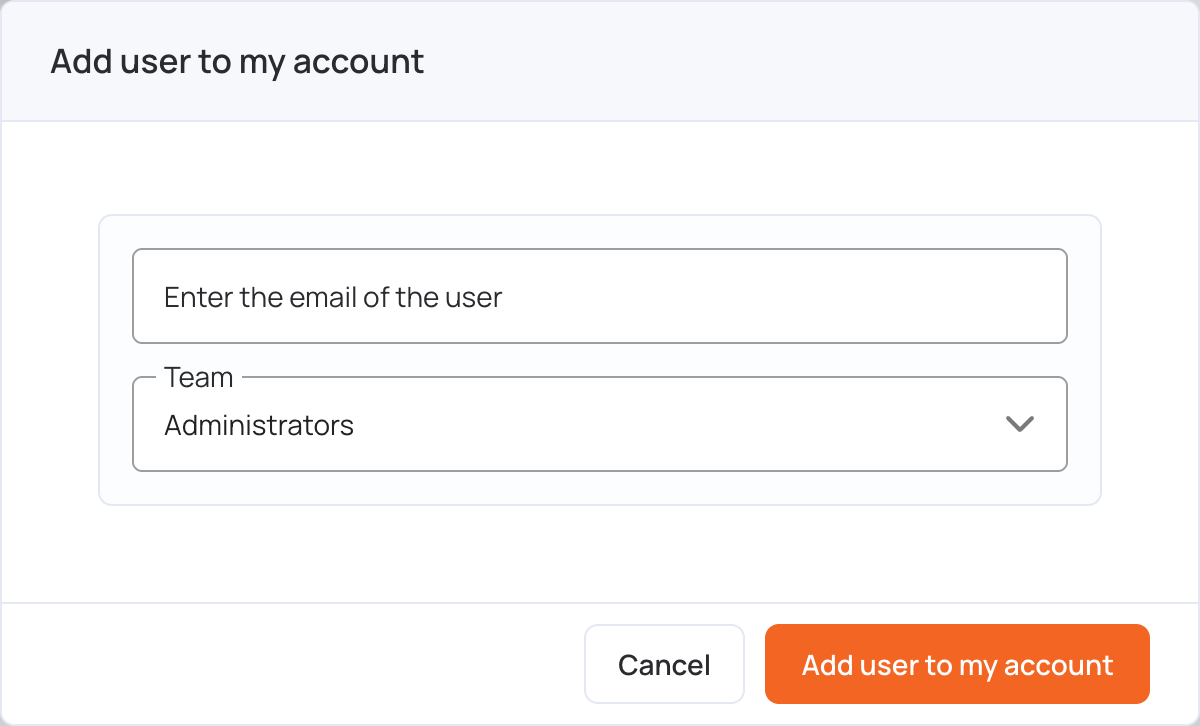
No email is sent to the person. Tell them yourself: they sign in, or sign up, with that exact email address and your account opens for them.
How to change a user’s team
- Click the edit icon next to the user.
- Choose another Team.
- Click Save.
The change applies straight away. You can’t change your own team.
How to remove a user
- Click the delete icon next to the user.
- Click Yes to confirm.
The person can no longer open your account. If they were working in it, they are moved back to their own account. You can’t remove yourself.
Working in another account
When someone adds you to their account, you can switch between your own account and theirs from Settings > Account Access. See Account Access.
While you are managing another account, its email is shown at the top of the page. To go back to your own account, click Account at the bottom of the menu on the left, then My Account.