Templates are ready-made designs, such as menus, sales, events and notices, that you can add to a playlist and change in the built-in Template Editor. You can also start from an empty design.
How to Add a Template
- Open the playlist, then click the layer. See Playlist Media Management.
- If the layer is empty, the content apps open. If it already has media, click Add New.
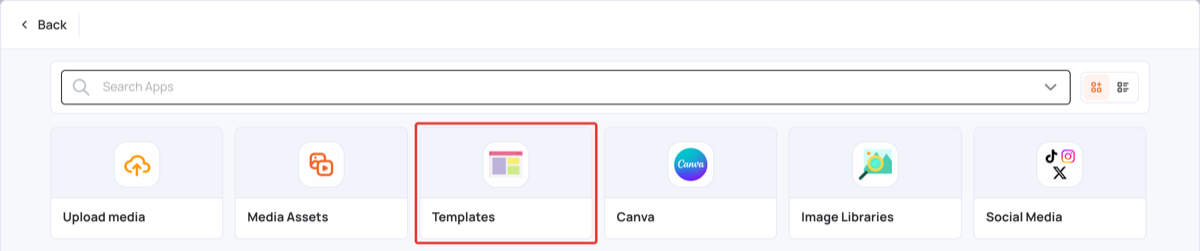
- Click Templates.
- Click a category, for example Restaurant & Cafe. To start from an empty design, choose Basic, then Blank.

- Click a template to add it to the layer.

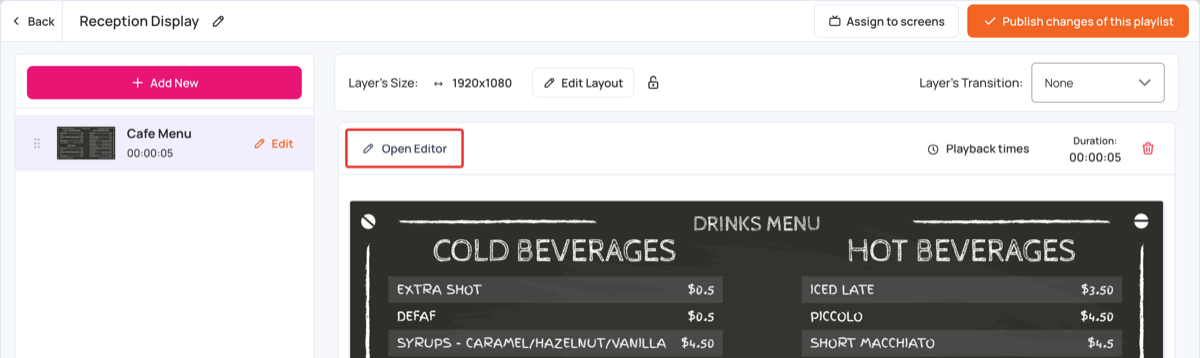
- The template is added to the layer as an image. To change it, click Open Editor. See Template Editor.
- Click Publish changes of this playlist to send it to your screens.