Use a Google Sheet as a live data source in a template: the table on your screens follows the sheet, so you update menus, rosters or event schedules by editing the spreadsheet.
How to Use Google Sheets for Dynamic Data
Step 1: Open a Template in the Editor
Add a template to a playlist layer and click Open Editor. See Templates. Leave space in your design where the data will go.
Step 2: Share Your Google Sheet
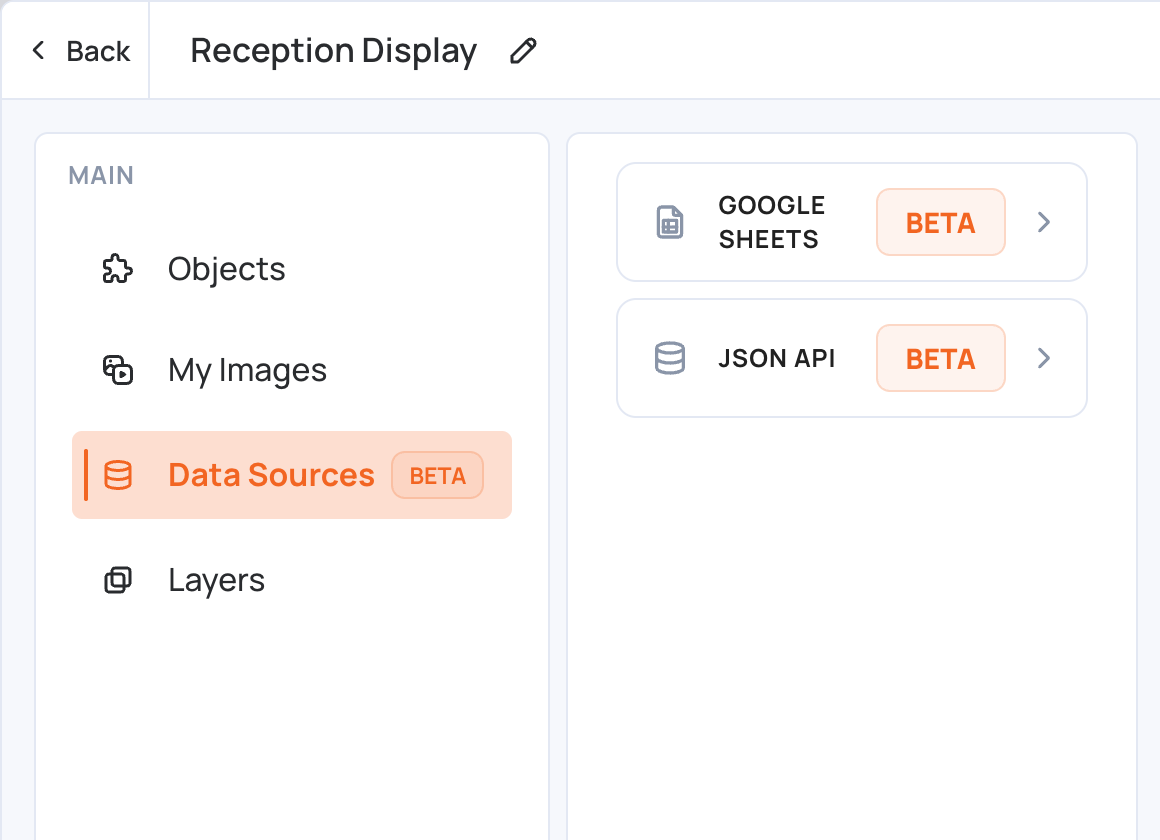
- In the editor, click Data Sources in the left menu, then Google Sheets.
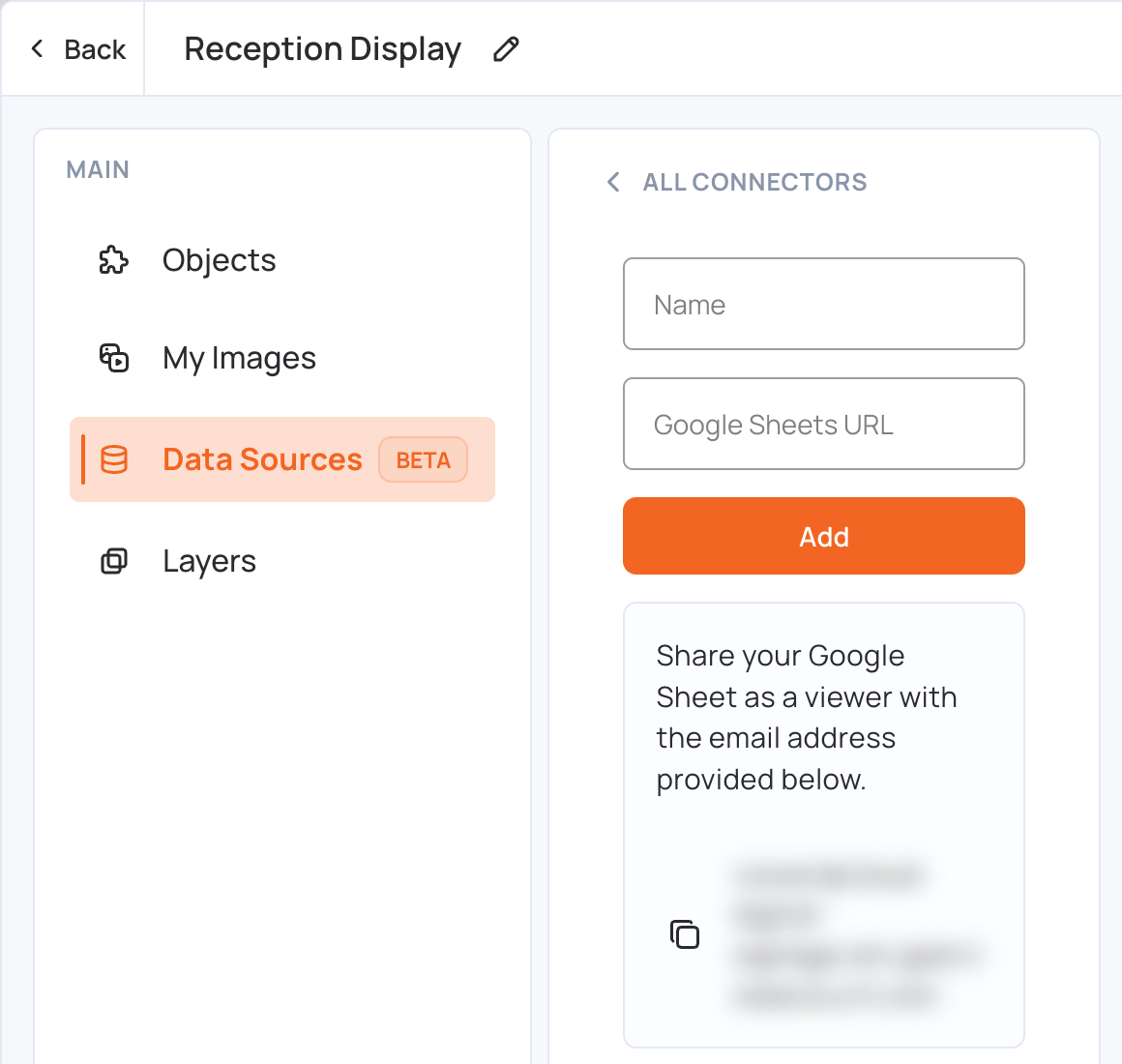
- The panel shows an email address under “Share your Google Sheet as a viewer with the email address provided below.” Click the copy icon next to it.
- In Google Sheets, click Share, paste the address, choose Viewer and click Share.


Keep the sheet as a plain table, with the same number of columns in every row.
Step 3: Add the Sheet
- Back in the editor, enter a Name for the sheet and paste the sheet’s link in Google Sheets URL. The link looks like
https://docs.google.com/spreadsheets/d/…. - Click Add.
The sheet is also saved to your account, so next time you can pick it from Choose a saved sheet instead of pasting the link again.
Step 4: Choose the Tab and Add the Data
- The panel shows the file name and its tabs. If they don’t appear, click Refresh Data.
- Under Sheets, choose the tab to use (Choose a sheet) and click Save. A template uses one tab.
- Click Add to template. A table with the sheet’s data is added to your design.
- Position and style the table like any other object, then save the template.
To stop using the sheet, click Delete in the panel.
How the Data Stays Up to Date
- When you change the sheet, the table on your screens updates automatically, usually within minutes.
- To pull the latest data straight away, open the template and click Refresh Data.
Use Cases
This integration is ideal for:
- Restaurant menus with daily specials
- Employee rosters
- Event schedules
- Any template requiring frequent data updates
For data from a JSON API instead of a spreadsheet, see Data Sources.