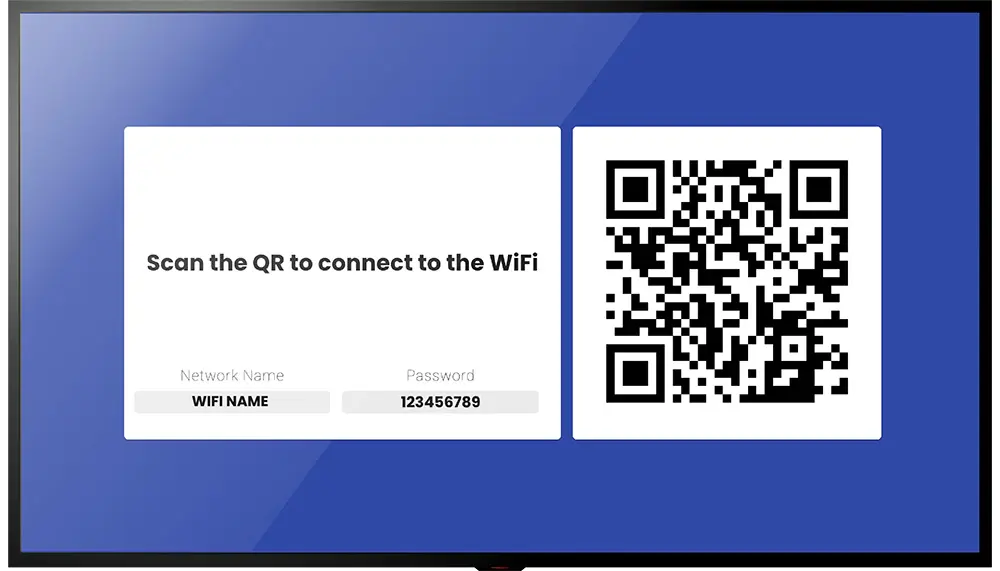
The WiFi Share App shows a QR code on your screens that customers scan to join your Wi-Fi network, for example in a restaurant, café, hotel or waiting room. It can also show the network name and password.
Note: The WiFi Share App is not offered on video walls.
How to Add the WiFi Share App
- Open the playlist, then click the layer. See Playlist Media Management.
- If the layer is empty, the content apps open. If it already has media, click Add New.
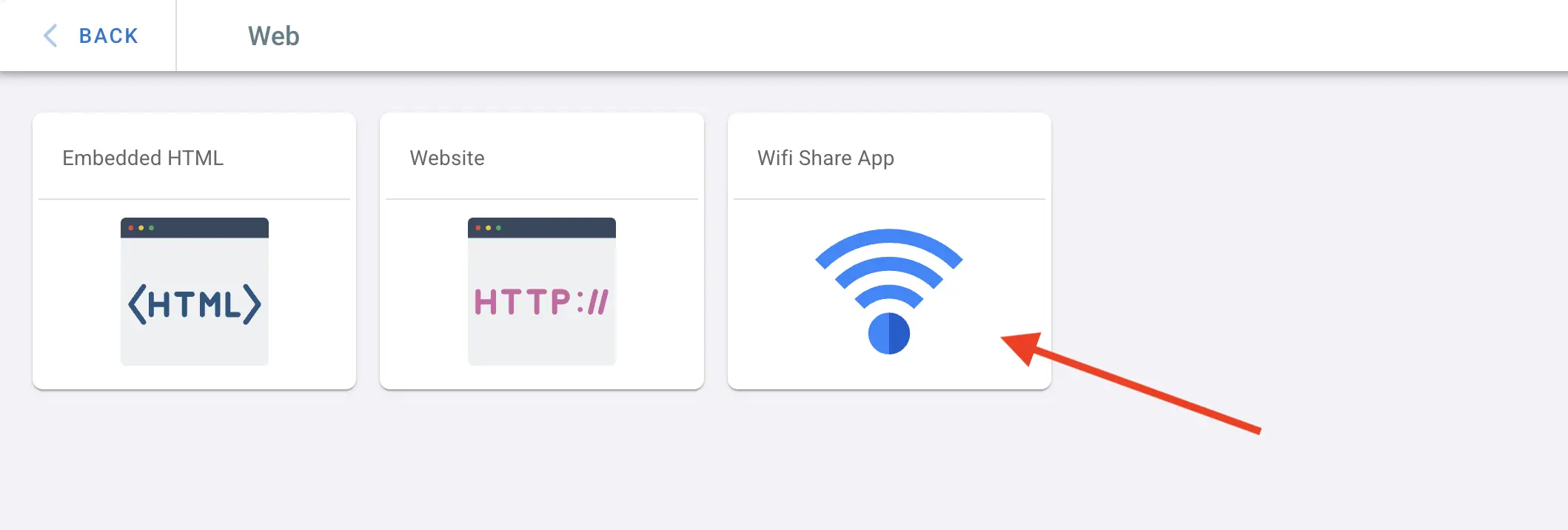
- Click Web, then Wifi Share App.
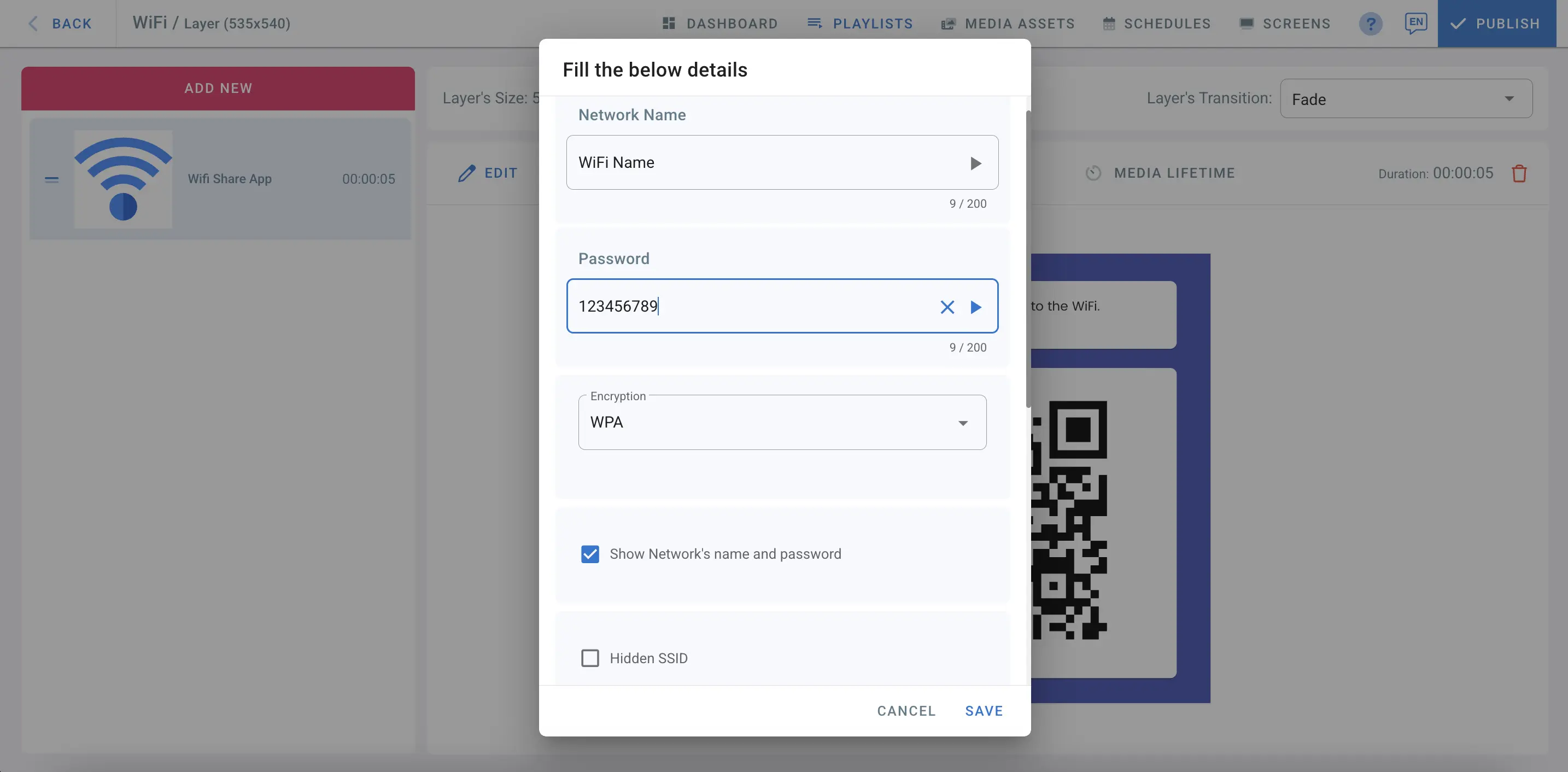
- Enter your Wi-Fi details:
- Network Name and Password
- Encryption: the security type of your network, usually WPA. Choose None for an open network.
- Show Network’s name and password: ticked by default. Untick it to show only the QR code.
- Hidden SSID: tick it if your network does not broadcast its name.
- Set how the screen looks:
- Instruction text: the text next to the QR code (by default, “Scan the QR to connect to the WiFi.”).
- Background Color
- Network Name Label and Password Label: the labels shown above the network name and password.
- Click Save.
- Click Publish changes of this playlist to send it to your screens.
Customers can now scan the QR code on your screen to join your Wi-Fi.