This page shows how to review your account’s activity log: who signed in and what was added, changed, deleted or published, from the dashboard or through the API.
How to review account logs
- Click Account at the bottom of the menu on the left.
- Click Logs.
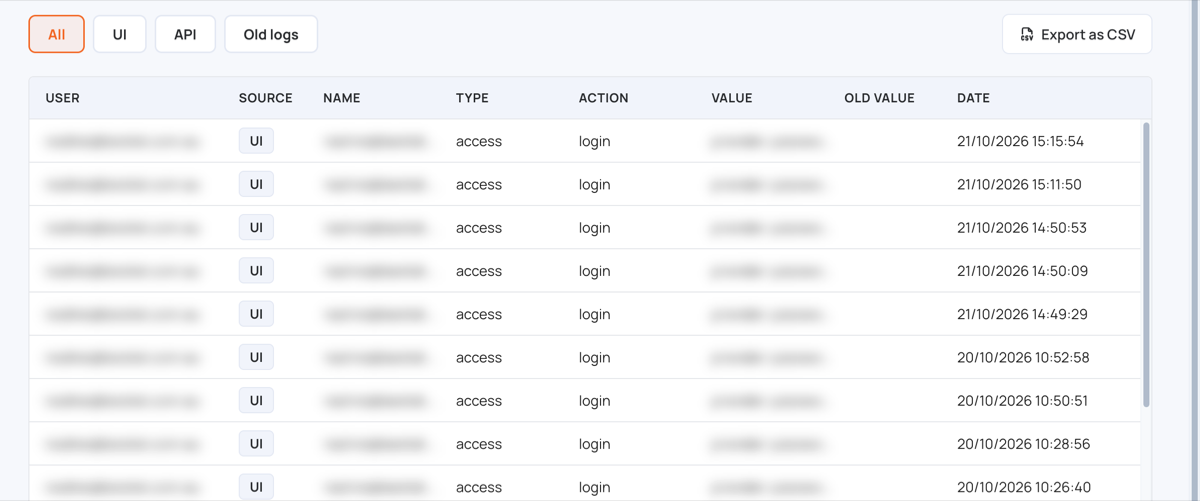
The newest entries are at the top. Each row shows the User, the Source, the Name of what was changed, its Type, the Action (for example add, update, delete or publish), the new Value, the Old Value and the Date.
- Use the tabs at the top to choose what to show: All, UI (changes made in the dashboard), API (changes made with an API key) or Old logs (entries recorded before the current log; this tab only appears if your account has any).
- Click the icon at the end of a row to open Log details, with the full request, the fields that changed, and where the change came from (IP address, city, country and local time).
- The table loads 100 entries at a time. Click Load more at the bottom to see older entries.
- Click Export as CSV to download the entries of the tab you are on as a
logs.csvfile (up to 10,000 entries, not only the ones loaded on screen).